Learning to connect a MIDI keyboard to an iPad opens a portable practice setup that fits a carry-on bag, a kitchen table, or a hotel room. For jazz piano, the goal is not just to make keys trigger sounds. You need a stable connection that works every time you open a browser-based practice app, with low enough latency to feel rhythm and voicing changes in real time.
This guide covers wired setup for every common iPad and keyboard combination, explains when Bluetooth is worth trying, and shows how to confirm that your browser receives MIDI before you start a lesson.

What You Need Before You Plug In
A MIDI keyboard sends note-on and note-off messages, not audio. The iPad receives those messages through a USB connection (or Bluetooth on supported keyboards) and passes them to an app or browser through Web MIDI or a native app.
Gather these items:
- MIDI keyboard with a USB port labeled USB, USB-B, or USB-C.
- Data-capable cable — not a charge-only cable. If in doubt, use the cable that came with the keyboard.
- Adapter if your iPad port does not match the cable (Lightning to USB Camera Adapter, USB-C to USB-A, or USB-C to USB-C).
- Powered hub (optional) if the keyboard draws too much current for the iPad to supply.
If you are comparing keyboard sizes for travel, see our guide to 49 vs. 61 keys for jazz piano.
Identify Your iPad Port
| iPad model era | Port | Typical adapter |
|---|---|---|
| iPad (9th gen and earlier with Home button) | Lightning | Apple Lightning to USB Camera Adapter (or USB 3 version with power pass-through) |
| iPad Air (4th gen+), iPad Pro, iPad mini (6th gen+) | USB-C | USB-C to USB-B cable, or USB-C hub with USB-A port |
USB-C iPads are simpler: many modern MIDI keyboards connect with a single USB-C to USB-C cable. Lightning iPads require Apple's adapter because generic Lightning adapters often fail to pass MIDI data.
Step-by-Step Wired Connection
1. Power off both devices (recommended for first setup)
Connect the keyboard to the adapter or cable, then connect the adapter to the iPad. If the keyboard has a power switch, turn it on after the cable is seated.
2. Check the iPad recognizes the device
Open Settings > Bluetooth. Many class-compliant USB MIDI keyboards appear here even though they are wired. You should see the keyboard name listed. If nothing appears, try a different cable or the USB 3 Camera Adapter with external power.
3. Open Safari or Chrome and grant MIDI access
Browser-based tools such as Jazzify use the Web MIDI API. On first visit, Safari prompts: "Allow this website to access MIDI devices?" Tap Allow. If you previously denied access, reset it under Settings > Safari > Advanced > Website Data or clear permissions for the specific site.
4. Play a note and confirm response
Press middle C (MIDI note 60). The app should show a visual response or play a tone within roughly 10–20 ms on a wired connection. If notes appear on screen but sound is delayed, see our MIDI latency reduction guide.
When to Use a Powered USB Hub
Some 88-key controllers and older USB-B keyboards draw more power than an iPad Lightning port provides. Symptoms include:
- Keyboard powers on then immediately shuts off.
- iPad shows "This accessory may not be supported."
- Notes trigger intermittently or not at all.
Fix: use Apple's Lightning to USB 3 Camera Adapter with the adapter's power input connected to a wall charger, or plug the keyboard into a powered USB hub and connect the hub to the iPad.
Bluetooth MIDI: Pros and Cons
Bluetooth removes the cable but adds 20–40 ms of latency on most setups. For jazz comping and improvisation, that delay can make swing feel sluggish. Bluetooth is acceptable for:
- Learning chord shapes and reading lead sheets.
- Ear-training exercises where exact timing is less critical.
- Practicing in situations where a cable is impractical.
For rhythm-heavy work — shell voicings on a blues, walking bass patterns, or trading fours — prefer a wired connection. Pair Bluetooth keyboards in Settings > Bluetooth, then grant the browser the same MIDI permission as with USB.
Browser Compatibility on iPad
| Browser | Web MIDI on iPad | Notes |
|---|---|---|
| Safari (iPadOS 16.4+) | Supported | Default choice for Jazzify and most Web MIDI apps |
| Chrome for iPad | Supported (recent versions) | May require enabling MIDI in site settings |
| Firefox for iPad | Limited | Not recommended for Web MIDI practice |
Keep iPadOS updated. Apple added Web MIDI support in iPadOS 16.4, which is essential for browser-based jazz piano tools.
Common Connection Problems
Keyboard not detected
Swap the cable first — charge-only cables are the most common cause. Then test with a powered adapter. Confirm the keyboard works on a Mac or PC to rule out a faulty USB port on the instrument.
Notes stuck on (sustain never releases)
Reload the page. If the problem persists, disconnect and reconnect the keyboard. Some controllers send an "all notes off" message on power cycle that clears stuck notes.
Permission prompt never appears
Check that you are not in Private Browsing mode with strict settings. Try a non-private tab. On iPadOS, Settings > Safari > Advanced > Feature Flags should not disable Web MIDI.
A First Practice Session After Setup
Once connected, run this 15-minute check before diving into repertoire:
- 2 minutes: Play C major scale hands separately. Confirm every note registers.
- 3 minutes: Play a Dm7–G7–Cmaj7 shell voicing cycle. Listen for even response across the keyboard.
- 5 minutes: Comp quarter notes on a blues in F with a metronome on beats 2 and 4.
- 5 minutes: Open a guided exercise in your practice app and complete one lesson module.
If you are new to jazz harmony, review jazz piano chords for beginners before adding voicing complexity.
Summary
- Use a data-capable USB cable and the correct adapter for your iPad port (Lightning or USB-C).
- Prefer wired connections for rhythm-sensitive jazz practice; use Bluetooth only when portability outweighs latency.
- Grant Safari or Chrome permission to access MIDI devices on first visit.
- If the keyboard is not detected, replace the cable before buying new hardware.
- Use a powered adapter or hub when the keyboard draws too much current.
- Confirm the setup with a short harmonic and rhythmic exercise before starting a full practice session.
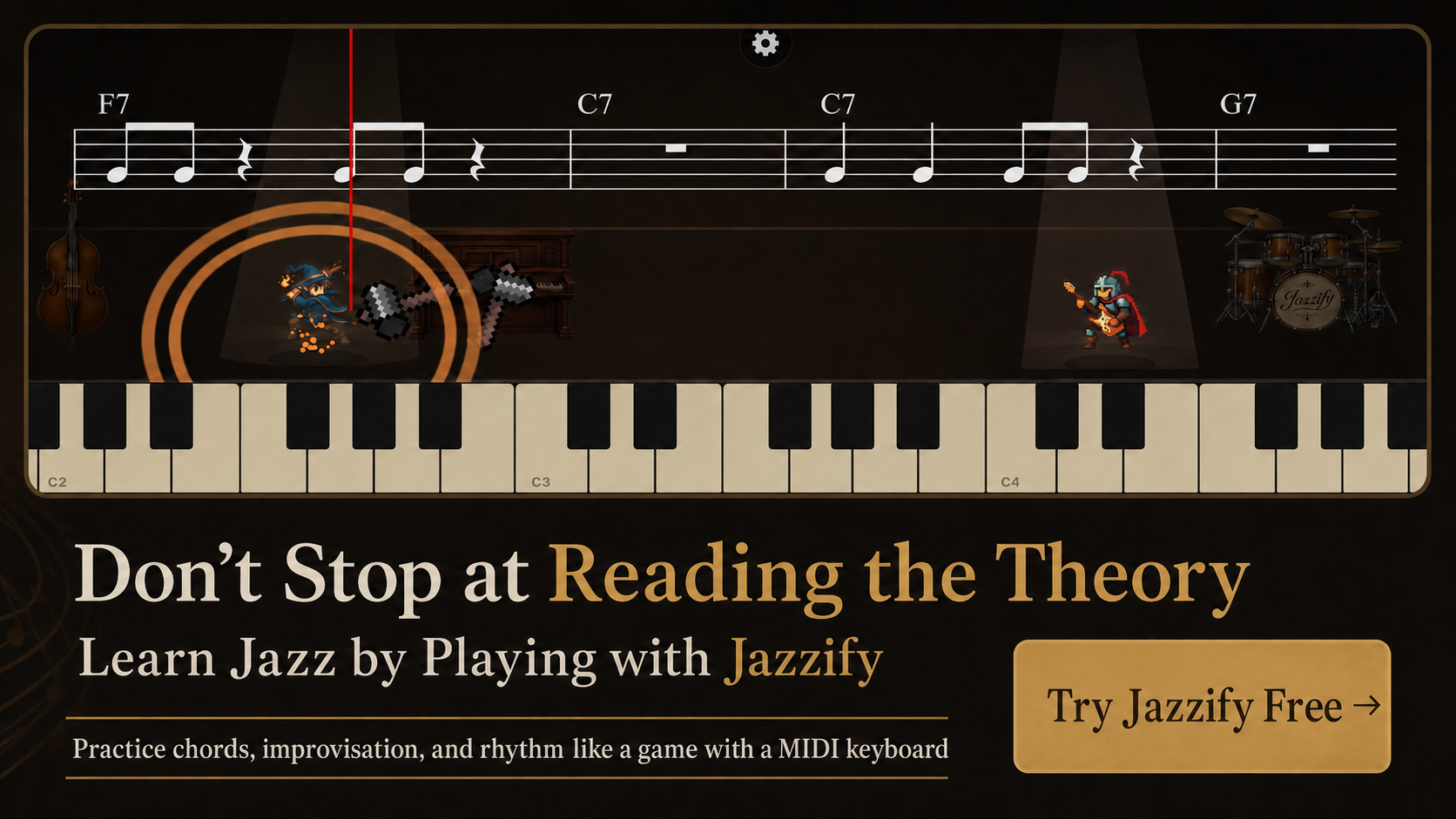
Play the Jazzify demo right now
Connect a MIDI keyboard and play this interactive demo in your browser.
On iPhone and iPad, browsers cannot use a MIDI keyboard. Please use the Jazzify app instead.