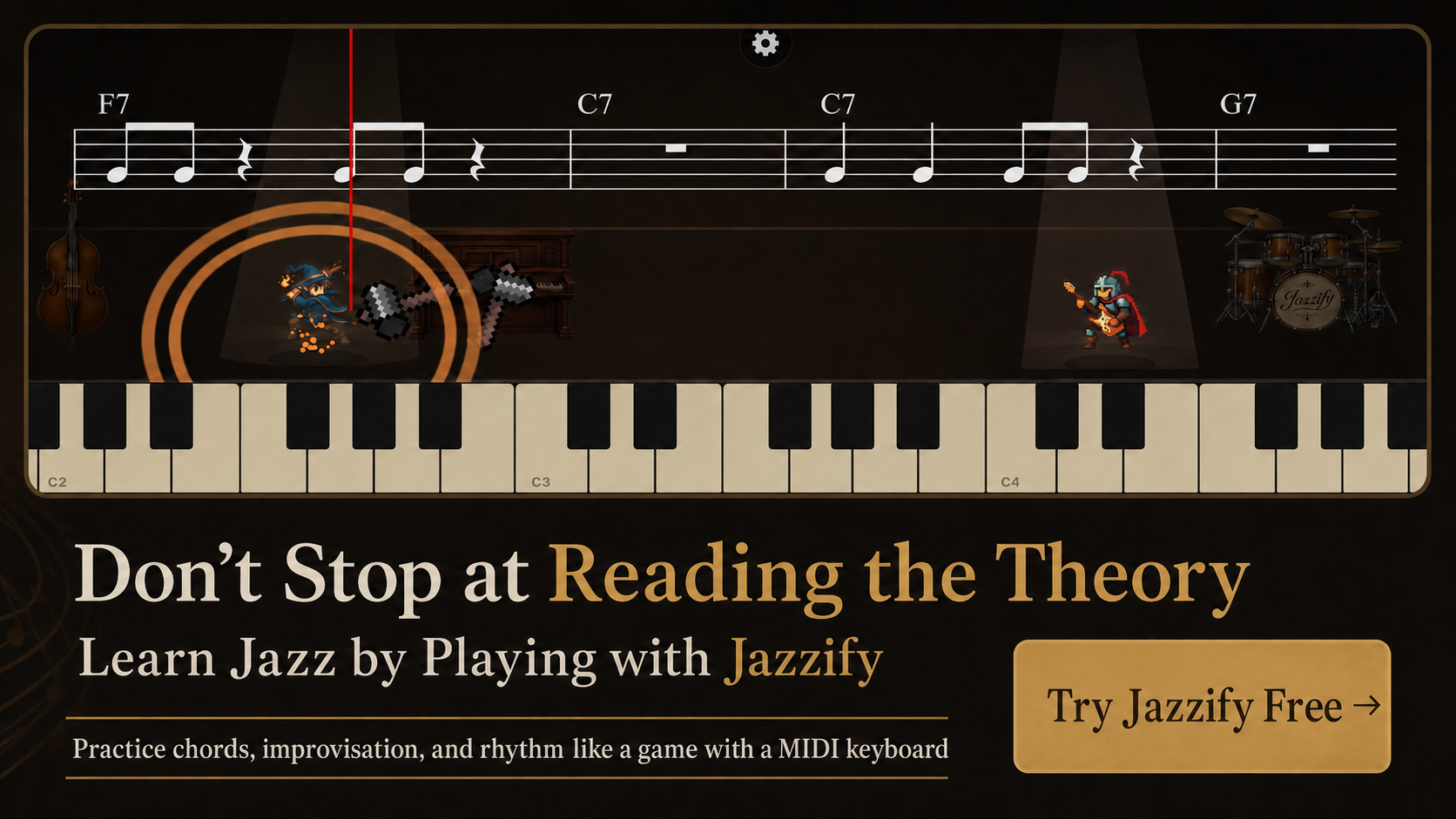
You can learn jazz piano in your browser — no app store download, no installation wizard, no waiting for updates. Modern browsers support Web MIDI, which lets a website read your keyboard input in real time. Connect a USB MIDI controller, open a practice site, and start working through voicings, ear training, and improvisation quests within seconds.
This guide explains how browser-based jazz practice works, which browsers and devices support it, and what to expect compared to native apps and traditional lessons.

How Web MIDI Makes Browser Practice Possible
Web MIDI is a browser API that gives websites access to connected MIDI devices. When you press a key on your controller, the browser receives a MIDI message (note number, velocity, on/off) and passes it to the web application. The app can then:
- Play a sound through the Web Audio API.
- Display visual feedback (highlighted keys, notation).
- Evaluate whether you played the correct voicing or scale degree.
- Log your attempt for progress tracking.
This is the same MIDI data native apps use — the difference is delivery through a URL instead of an app store install.
Browser Compatibility in 2026
| Browser | Web MIDI | Platform | Notes |
|---|---|---|---|
| Chrome 89+ | Full support | Mac, Windows, Chromebook, Android | Most tested for MIDI apps |
| Safari 14+ | Full support | Mac, iPad, iPhone | Requires per-site permission |
| Edge (Chromium) | Full support | Mac, Windows | Same engine as Chrome |
| Firefox | Disabled by default | All | Not recommended for MIDI practice |
For Mac setup, follow connect MIDI keyboard to Mac. For iPad, see connect MIDI keyboard to iPad.
What Browser-Based Jazz Practice Looks Like
A typical session in a platform like Jazzify:
- Open the site in Chrome or Safari.
- Connect your MIDI keyboard via USB.
- Grant MIDI access when the browser prompts (one time per site).
- Select a guided quest — for example, "Shell voicings through ii-V-I in C."
- Read the brief theory explanation on screen.
- Play the exercise; the app checks each note and shows correct/incorrect feedback.
- Advance to the next stage or retry until you pass.
The entire flow — from opening the browser to playing the first exercise — takes under two minutes once your keyboard is connected.
Advantages of Browser-Based Learning
No installation
Skip app store accounts, download queues, and version mismatches. Bookmark the URL and practice on any compatible device.
Always up to date
New quests, bug fixes, and curriculum updates deploy instantly. You never manually update an app.
Cross-platform with one account
Practice on your Mac in the morning and your iPad in the evening with the same progress. Native apps often require separate purchases per platform.
Lower barrier to try
Click a link, connect a keyboard, start a free quest. No commitment to download a 200 MB app before knowing whether the tool fits your learning style.
Limitations to Know
Requires internet
Most browser apps need a connection to load content and track progress. Offline practice is generally unavailable unless the app uses service workers with cached content.
Browser permission management
If you deny MIDI access accidentally, you must reset site permissions before the app works. This is a one-time setup issue, not an ongoing problem.
Audio latency varies by device
Wired USB on a Mac or iPad typically delivers 5–15 ms latency. Bluetooth MIDI adds 20–40 ms. Older Chromebooks may have higher audio buffer delays.
No access to OS-level MIDI routing
Browser apps cannot route MIDI through multiple software instruments simultaneously the way a DAW can. For pure practice and learning, this rarely matters.
Browser vs. Native App: When Each Wins
| Scenario | Browser | Native app |
|---|---|---|
| Quick daily practice session | Better (no launch delay) | Acceptable |
| Offline travel practice | Weak | Better |
| Cross-device progress sync | Better | Varies |
| Lowest possible MIDI latency | Comparable (wired USB) | Comparable |
| Trying before committing | Better (instant access) | Requires download |
For a broader software comparison, see MIDI piano learning software.
What to Practice in the Browser
Browser-based tools handle these jazz topics well:
- Chord spelling and voicing drills — play specified shapes, get instant verification.
- ii-V-I voice leading — connect chords with minimal movement across keys.
- Ear training — hear a chord or phrase, play it back on your keyboard.
- Scale-over-chord exercises — play assigned scale degrees over static harmony.
- Guided improvisation quests — structured solo exercises with pitch feedback.
Browser tools are weaker for open-ended improvisation coaching, time-feel evaluation, and repertoire performance with accompaniment — those still benefit from a teacher or jam session.
Setting Up Your First Browser Session
Hardware
Any class-compliant MIDI keyboard with USB works. A 61-key semi-weighted controller covers most jazz exercises. See best MIDI keyboard for jazz piano for buying guidance.
Software (none to install)
Use Chrome or Safari. Avoid Firefox for MIDI. Ensure your browser is updated to the versions listed above.
Connection check
- Plug keyboard into USB port.
- Open the practice site.
- Allow MIDI access.
- Play middle C — confirm visual or audio response.
- Play a three-note Dm7 voicing — confirm polyphonic detection.
Jazzify as a Browser-Based Practice Platform
Jazzify is designed specifically for browser-based jazz piano learning:
- Guided quests — structured curriculum from triads through rootless voicings, improvisation, and ear training.
- MIDI keyboard input — play real voicings, not on-screen buttons.
- Real-time feedback — instant evaluation of pitch, chord spelling, and timing.
- Ear-training modules — integrated with keyboard exercises in the same session.
- Free introductory content — try quests before upgrading to premium.
No download required. Open the site, connect your keyboard, and start the first quest.
Tips for Productive Browser Practice
- Use wired USB — not Bluetooth — for rhythm exercises.
- Close other tabs that may compete for audio resources.
- Use headphones to hear feedback clearly and avoid disturbing others.
- Bookmark the site so you skip typing the URL every session.
- Set a timer — 20–30 focused minutes beats an hour of distracted browsing between exercises.
- Combine with listening — browser practice builds technique; recordings build language.
Mobile Browser Practice on iPhone and Android
Safari on iPhone supports Web MIDI when connected through a USB-C or Lightning adapter. Android Chrome support varies by device manufacturer — test your specific phone and keyboard combination before relying on it for daily practice. Tablets (iPad, Android tablets) generally offer a more comfortable screen size for reading quest instructions while playing.
Phone screens work for short ear-training sessions but feel cramped for voicing diagrams. Use a phone for 10-minute drills and a laptop or tablet for full 30-minute quest sessions.
Security and Privacy
Web MIDI access is scoped per site. A practice app can read your keyboard input only on its own domain — not globally across your computer. If you revoke permission, the site loses MIDI access immediately. Check your browser's site settings to audit which sites have MIDI permission.
Summary
- Modern browsers (Chrome, Safari, Edge) support Web MIDI for real-time keyboard input without installing an app.
- Browser-based jazz practice offers instant access, cross-device sync, and always-current content.
- Connect a MIDI keyboard via wired USB, grant browser permission once, and start guided exercises.
- Browser tools excel at voicing drills, ear training, and structured quests; teachers still needed for time feel and phrasing.
- Jazzify provides browser-based guided quests with MIDI feedback — no download required.
Play the Jazzify demo right now
Connect a MIDI keyboard and play this interactive demo in your browser.
On iPhone and iPad, browsers cannot use a MIDI keyboard. Please use the Jazzify app instead.